Introduction
A private event gallery should make it easy for the right people to view and download photos—without exposing the entire collection to anyone who receives a link. Private event photo sharing starts with choosing the right access settings, explaining the rules clearly, and checking the gallery before sending it to guests. A password alone may not be enough if the link can be forwarded or downloads are unrestricted.
For wedding and event photographers, privacy is part of the delivery workflow, not an extra task to remember at the end. This checklist covers practical steps for setting up a gallery, managing guest permissions, handling face recognition, and communicating expectations so clients and guests know how their photos can be accessed and used.
1. Decide who should be able to access the gallery
Before uploading photos, confirm who the gallery is for and what each group needs to do. A couple may want a gallery for all invited guests, while a corporate client may need one for staff and approved partners only. The access model should reflect the event and the client’s expectations.
Start by asking the client:
Should the gallery be open to everyone with the link, or limited to invited guests?
Should guests be able to download photos, or only view them?
Are there photos that should be restricted to the couple, family, organizers, or a specific team?
How long should the gallery remain available?
Who should be able to request changes or report a photo concern?
Avoid assuming that one shared link is appropriate for every event. If a gallery includes children, private gatherings, sensitive business events, or guests who have asked not to be photographed, agree on the handling process with the client before sharing.
2. Choose access settings that match the event
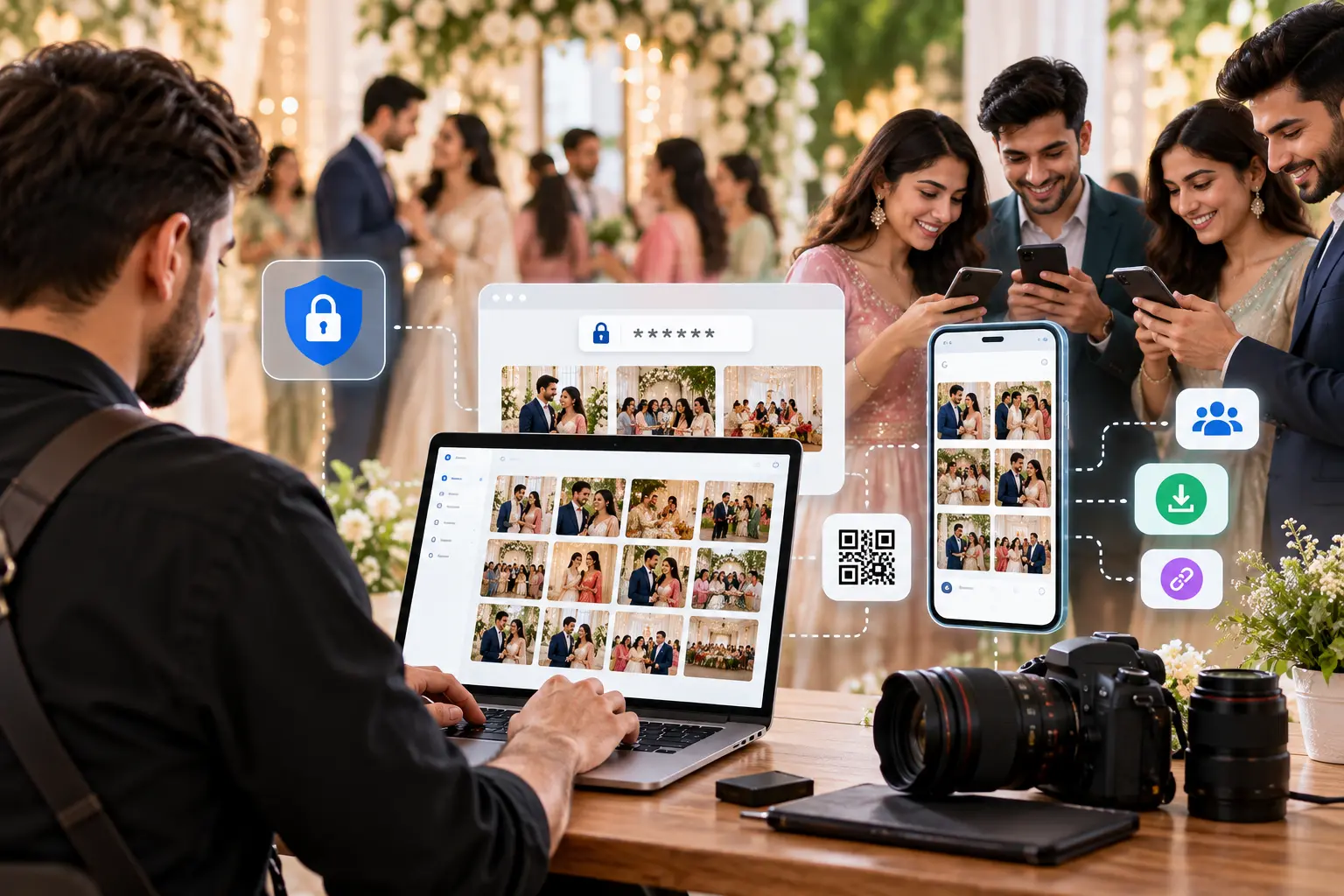
Gallery platforms use different names for their privacy options, so check what each setting actually does. In particular, distinguish between a password-protected gallery, an invite-only gallery, and a link that anyone can open.
Access method | How it works | Considerations |
|---|---|---|
Public gallery | Anyone can view it, often without signing in | Use only when the client has approved public access |
Unlisted link | Anyone with the link can open the gallery | Links can be forwarded, so it is not the same as invite-only access |
Password-protected gallery | Visitors need a password to enter | Share the password separately when practical; avoid using an easily guessed code |
Invite-only access | Only approved accounts or email addresses can enter | More control, but guests may need to sign in or be added first |
Separate private sub-galleries | Different groups get access to selected photos | Useful for family, staff, speakers, or restricted image sets |
Checklist: Test the access settings in a private browser window or on a device that is not already signed in to the photographer’s account. Confirm that the gallery behaves as expected for a guest, not just for the administrator.
3. Set passwords and permissions carefully
A password can reduce casual access, but it does not prevent an authorized viewer from sharing the password or saving an image. Treat it as one layer of access control rather than a complete privacy solution.
Use a unique password for each event instead of reusing a studio-wide password. Avoid obvious choices such as the couple’s names, wedding date, or venue name. If the platform supports individual invitations, consider using them for events where access needs to be limited to a defined guest list.
Review the available permissions before sharing:
View: Can the person open and browse the gallery?
Download: Can they save original or high-resolution images?
Share: Can they send the gallery link to others?
Upload: Can they add their own photos?
Manage: Can they edit, remove, or organize gallery content?
Give guests only the access they need. For example, a client may need permission to select favorites, while general guests may only need to view and download approved images. Check whether the platform supports removing access later, and explain that removing a person’s access cannot retrieve photos they have already downloaded.
4. Review download controls before delivery
Download settings affect both convenience and control. Some clients want guests to save full-resolution images; others prefer web-sized downloads or limited access to selected photos. Confirm the preference before the gallery goes live, and check whether the platform allows different settings for different groups.
A practical review includes:
Download size: Are guests allowed to download original files, web-sized copies, or both?
Bulk downloads: Can a guest download the whole gallery at once? If so, does the client approve that?
Selection tools: Can guests mark favorites or choose images without downloading everything?
Watermarks: If used, are they visible only in previews or also in downloaded files?
Expiration: Will download access end when the gallery expires, or can guests still access previously saved files?
Be clear with the client about the limits of download controls. Once someone saves a file to their own device, a photographer generally cannot control where that copy is stored or how it is shared.
5. Get clear on consent and sensitive images
Consent and privacy expectations should be discussed before the event, not only after a guest complains. The client may have already collected photo preferences during registration or invitations; ask whether any guests have requested not to appear in shared galleries.
For events involving children, private ceremonies, confidential presentations, or sensitive situations, agree on a review process for images before publishing. If a guest asks for a photo to be removed or restricted, have a clear way to receive the request, verify the relevant image, and respond.
When using face recognition photo sharing, explain the feature in plain language and check the platform’s privacy information. Tell the client whether face-based search is available, what guests need to do to use it, and what information the service processes. Do not promise that a face search is perfect: matching can miss photos or return incorrect results, and guests should have another way to browse the gallery.
Privacy and biometric-data requirements can vary by location and situation. For events where face data or other sensitive information is involved, review the applicable rules and the platform’s data-handling terms with the client before enabling the feature.
6. Make QR-code access convenient—but not public by accident
A QR code event gallery can help guests reach the right collection without typing a long URL. It is especially useful at receptions, conferences, school events, and sports gatherings where people may be viewing photos on their phones.
Still, a QR code is just a shortcut to a link. If the linked gallery is open to anyone, anyone who scans or receives the code may be able to access it. If the gallery requires a password or invitation, make sure the guest instructions explain that extra step.
Before printing or displaying the code:
Scan it with a phone that is not logged in to the gallery account.
Check that it opens the correct event, not a test or previous gallery.
Make the destination and access requirements clear on the sign.
Avoid placing access details where unintended viewers can easily photograph them.
Have a short URL or contact method available in case a guest cannot scan the code.
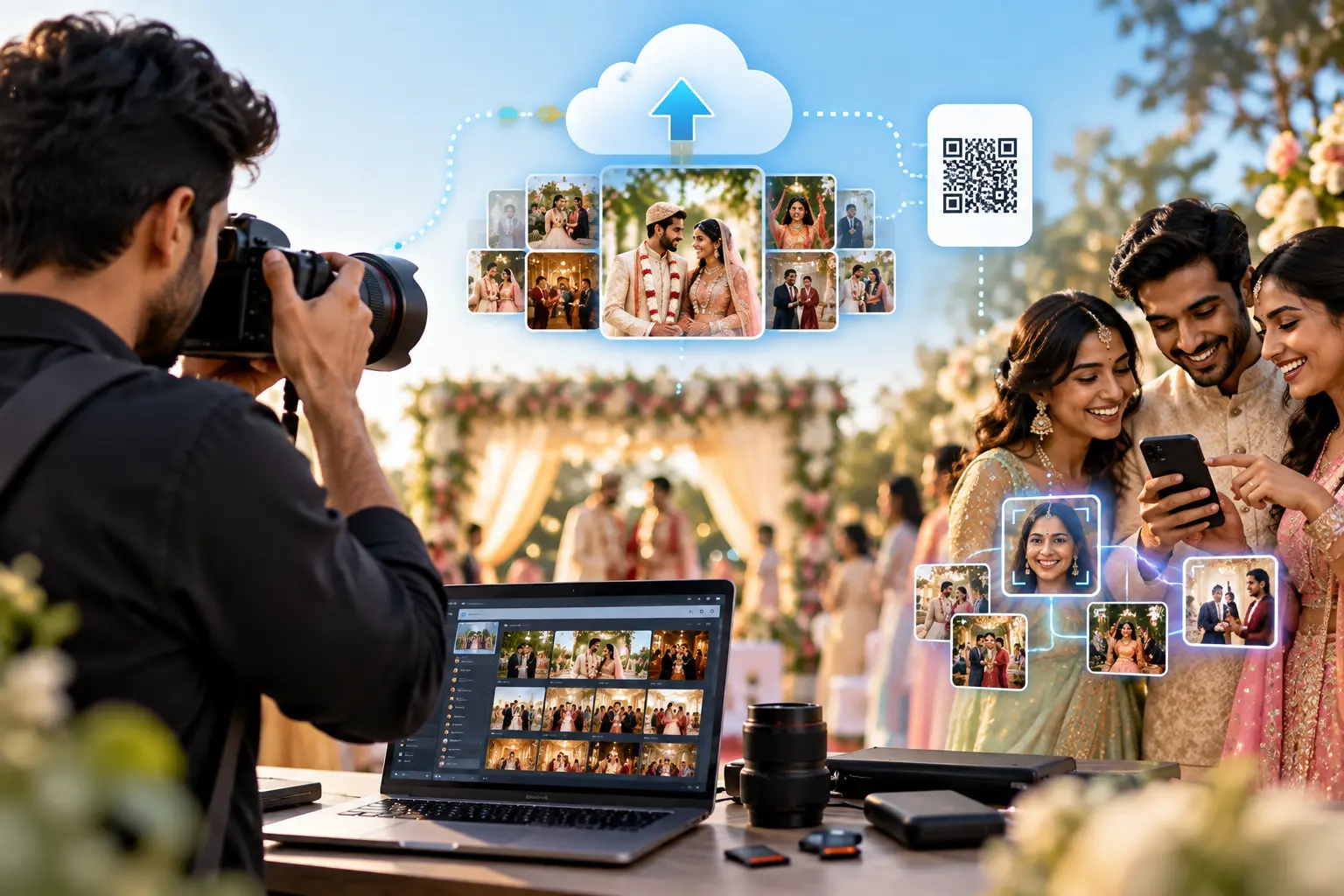
For more ideas on collecting guest images, see how to collect photos from wedding guests without a WhatsApp group .
7. Write gallery rules guests can understand
Long terms and technical explanations are easy to overlook. Give guests a short set of practical instructions at the point where they access the gallery. Keep the language friendly and specific, and make sure it matches the settings you have actually enabled.
A sample note could read:
Welcome to the event gallery. Please use this link for your personal viewing and downloads. The gallery is intended for invited guests, so please don’t forward the link or password outside the event group. If you have a concern about a photo or would like to request its removal, contact the event organizer or photographer using the details provided.
Adapt the wording to the client’s preferences and the event’s rules. If guests are allowed to share selected images on social media, say so. If images should not be reposted, explain that clearly and politely. Do not state that sharing is prohibited unless the client has agreed to that rule and it is reflected in the event’s communications.
A well-written message can reduce confusion and repeated questions. It should tell guests what they can do, what they should avoid, and where to ask for help.
8. Test the complete guest experience before sending the link
A gallery can be correctly configured in the admin panel and still be confusing for guests. Do a final test from a guest’s point of view, preferably on a mobile phone and a different browser.
Pre-delivery checklist:
If you use a fast gallery delivery tool, include this check in the delivery process rather than treating speed as the only measure of a successful handoff. A few minutes of testing can prevent a confusing or overly open gallery from reaching a large guest list.
For broader workflow ideas, you can also read how instant event photo delivery works for photographers .
9. Plan what happens after delivery
Privacy work continues after the gallery link is sent. Decide in advance who will monitor questions, how removal requests will be handled, and when access should end. If the client wants the gallery to remain available for a limited time, put the expiration date in the delivery message and consider sending a reminder before it closes.
Keep a simple record of the client’s approved access settings, the date the gallery was shared, and any agreed restrictions. Avoid keeping unnecessary personal information, passwords, or copies of guest lists longer than needed for the workflow. Store any operational notes securely and limit access to people who need them.
If a guest reports an incorrect match, unwanted image, or access issue, acknowledge the request and follow the process agreed with the client. A clear contact route is more useful than asking guests to post complaints publicly or repeatedly message different team members.
FAQs
Is a password-protected event gallery completely private?
No. A password adds a layer of access control, but guests can still share the password or save images once they have access. For more restricted events, consider individual invitations or separate galleries with different permissions.
Should wedding guests be allowed to download every photo?
That depends on the couple’s preferences and the photographer’s delivery agreement. Confirm whether guests should download individual images, selected favorites, or the full gallery, and set expectations in the gallery instructions.
Is a QR code event gallery secure?
A QR code itself does not secure a gallery; it simply opens a link. Use the gallery’s access settings—such as a password or invite-only access—and test the QR code before displaying it at the event.
What should photographers explain about face recognition photo sharing?
Explain how guests can use face search, what information the feature processes according to the platform’s privacy terms, and what to do if a result is missing or incorrect. Avoid promising perfect matching, and consider whether the feature is suitable for the event and its privacy expectations.
Conclusion
Private event photo sharing works best when access, permissions, and guest communication are planned together. Confirm who should see the gallery, use settings that fit the event, review download options, and discuss consent or sensitive images with the client before delivery. Treat passwords and QR codes as access tools—not guarantees of privacy—and test the gallery from a guest’s perspective before sending it out. A short, clear set of gallery rules and a defined process for questions or removal requests can make photo delivery easier for both guests and photographers.